
Secondary Disclosure - Professional Standards
Once the review process is complete, the record is ready to be Disclosed to Crown (Secondary Disclosure).
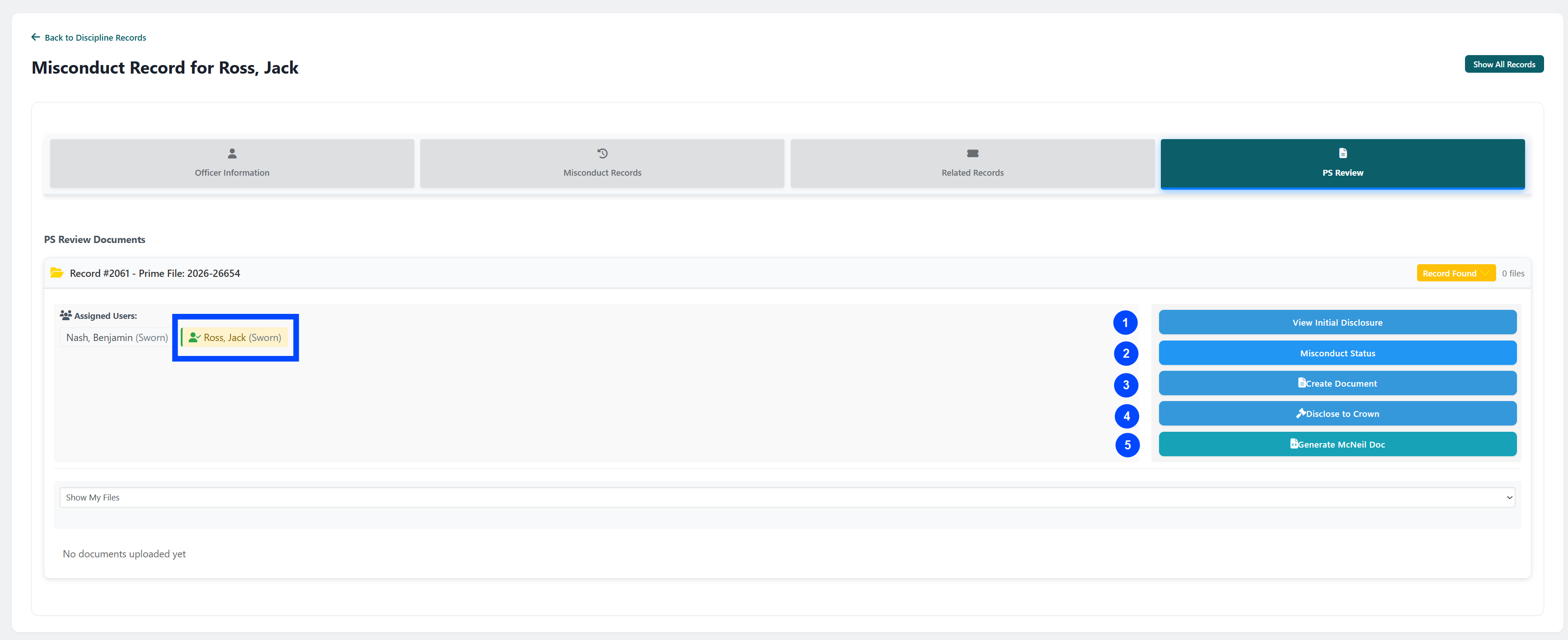
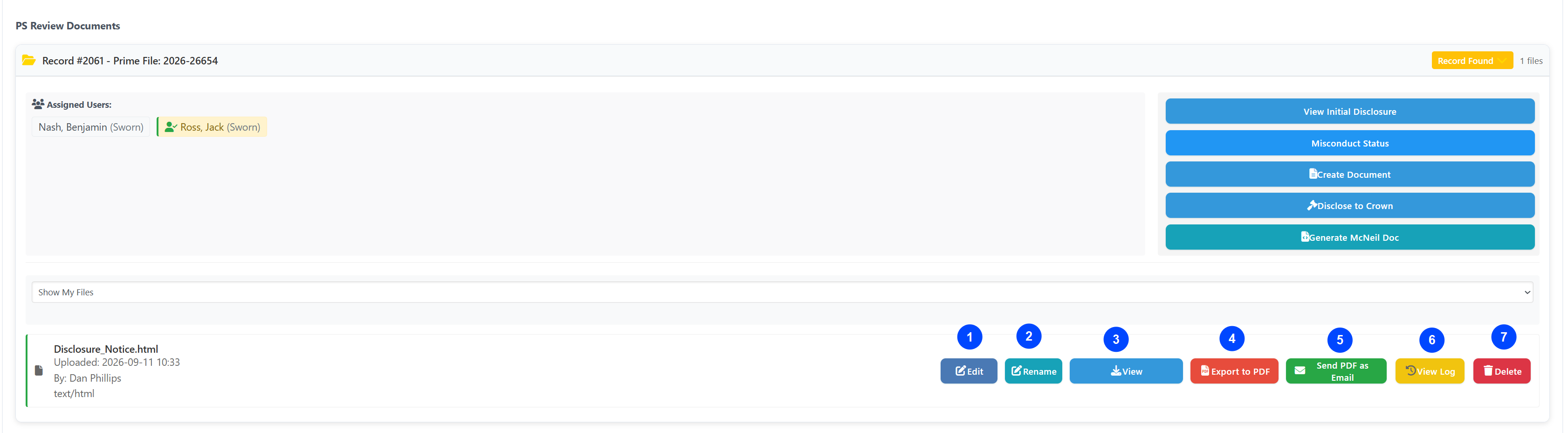
On the Review screen you will see:
The Member under review is indicated in green
The following actions are available:
View Initial Disclosure - this opens the original disclosure record
Misconduct Status - this option was designed for pre-McKee workflow. It allows the PS staff to assign relevance.
Create Document - this opens a blank document screen to create an ad hoc document.
Disclose to Crown - This opens a prefilled document screen (shown below). Note: this action is design for the McKee process and will disclose all disciplinary records.
Generate McNeil Doc - this will regenerate the original (initial) disclosure document.
Disclose to Crown - Generating the Document
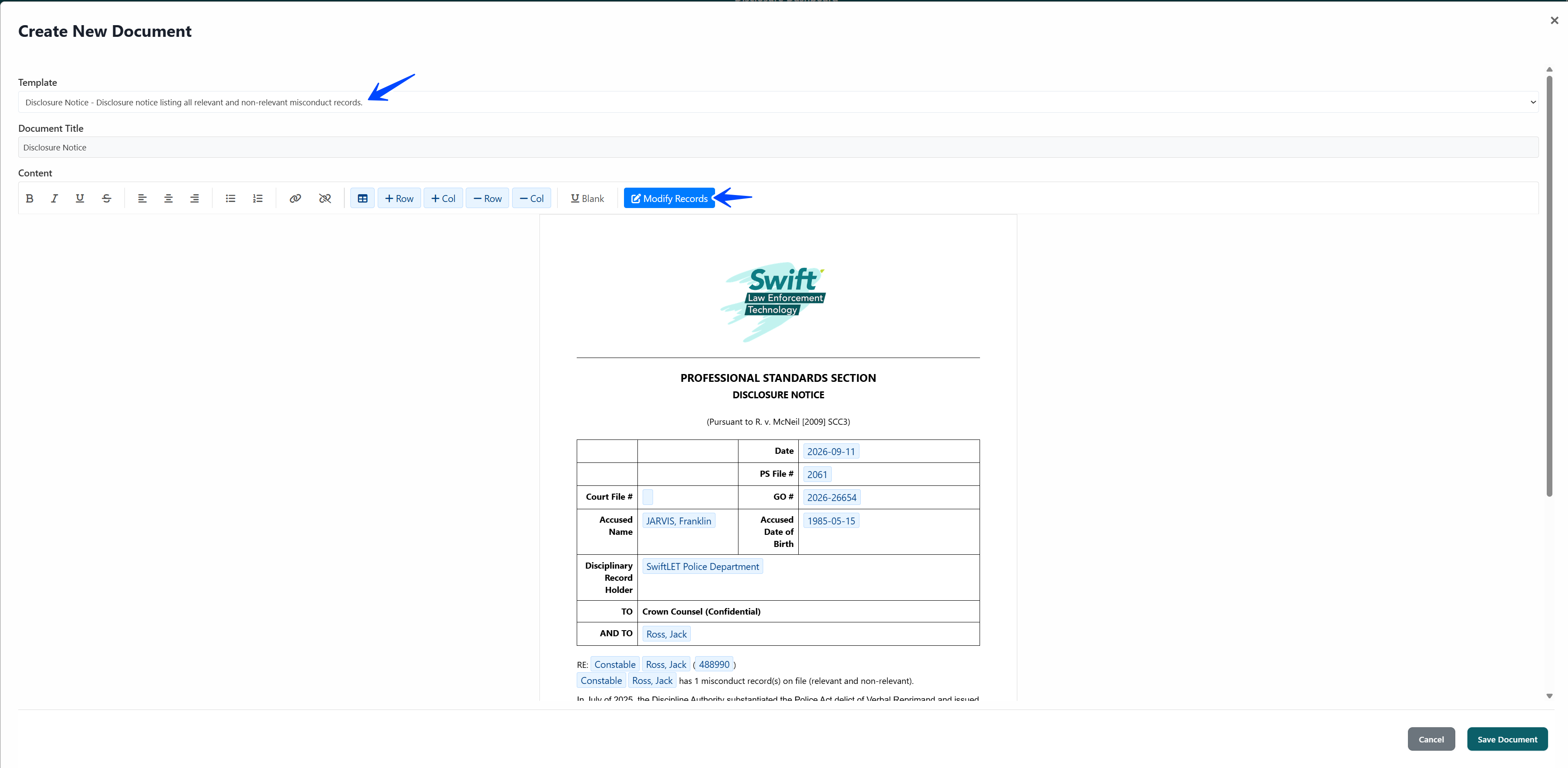
This action will auto-fill the Disclosure Notice template (McKee workflow). All documents can be edited or modified by clicking the Modify Record button.
The document is pre-filled with all relevant data to minimize the need for customization.
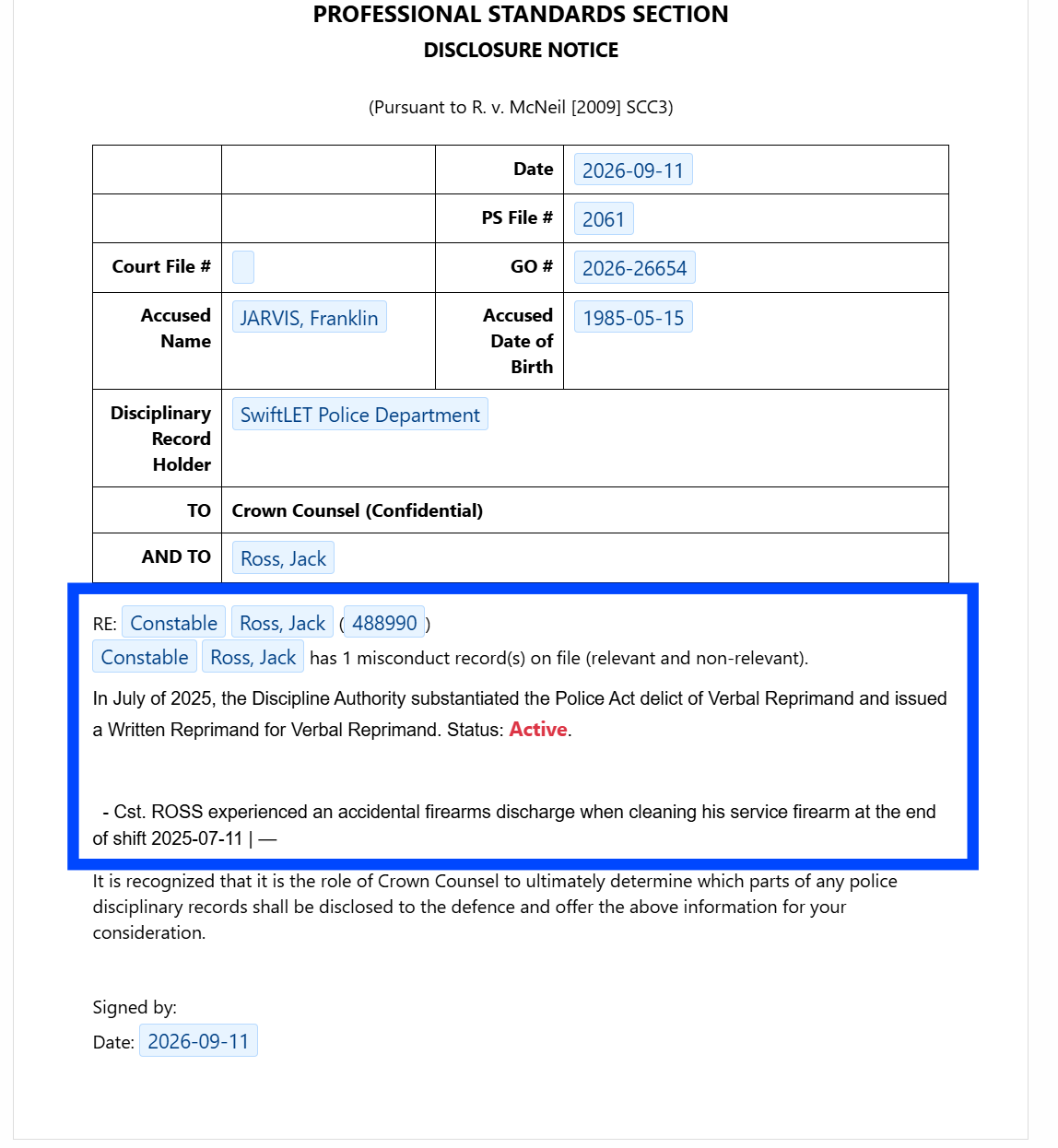
The discipline record details are filled from the Summary text box on the Discipline Record, see Adding a Service Record of Discipline.
Click the Save Document button in the lower right.
Disclose to Crown - Sending the Document
All saved documents are shown in the list with available actions:
Edit - edit this document
Rename - rename this document
View - view this document
Export to PDF (This is the primary action to complete the process) - exports the document to be disclosed to Crown.
Send PDF as Email - generates a secure PDF that can is emailed automatically to a pre-determined email address.
View Log - show all actions taken on this document
Delete - deletes the document (depending on permissions)
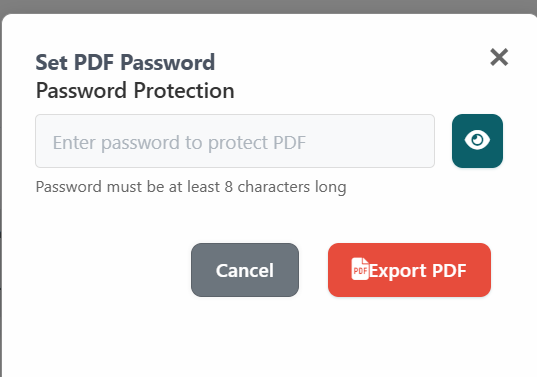
Export to PDF
The Export the PDF option will display a box to set one-time password to secure this document. The password must be 8-characters long. Share the password with Crown when disclosing.